Cloud Server Disk Expansion: Zero‑Downtime Resize Without Unmounting
Last year, a client's server disk filled up. The application started failing. Their ops engineer said, "We'll need to schedule downtime, probably late tonight when nobody's using it." I asked: "Why do you need downtime for a cloud disk expansion?" They paused: "Isn't that how it works on physical hardware?"
Physical servers require shutting down to replace hardware. Cloud disks work differently. They are virtualised storage resources — expanding them is a backend storage operation. The instance doesn't need to stop, and the disk doesn't need to be unmounted.
That server went from full to expanded in about 10 minutes. The business never paused for a second.
01 Why Downtime Isn't Needed
The fundamental difference between cloud disks and physical disks: expanding a physical disk means swapping hardware. Expanding a cloud disk means updating a storage allocation record on the backend. The operating system sees a disk that has "gotten bigger" — not a new disk that requires reconfiguration.
As long as you follow the correct order, the expansion doesn't affect the running service:
The disk remains attached to the instance during the control panel resize. Reads and writes continue uninterrupted.
The partition and filesystem expansion within the OS does not require unmounting the disk or rebooting the instance.
Applicable scenarios: Both system and data disks support online expansion, provided the instance is in the "Running" state and the disk is in the "In Use" state.
02 The Operation Flow: Two Steps
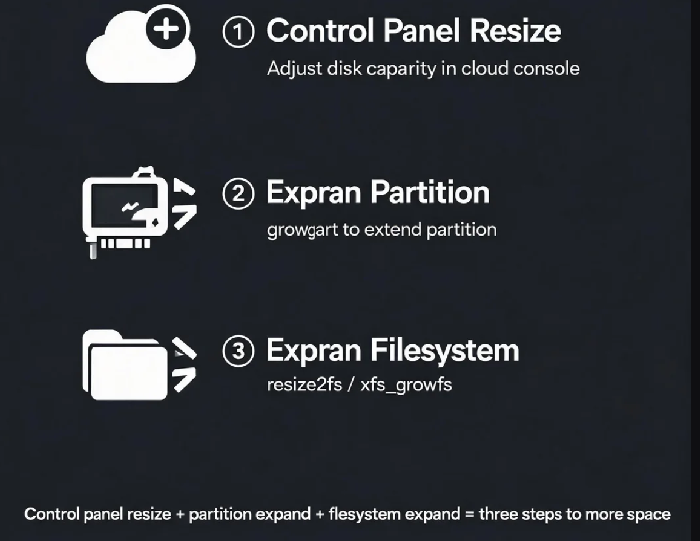
Cloud expansion is a two‑step process: expand the disk in the cloud control panel first, then extend the partition and filesystem inside the server. Doing only the first step won't make the additional space available.
Step 1: Control panel expansion
Using Alibaba Cloud as an example: go to the ECS console, find the target instance, click on the "Disks" tab, select the disk, click "More" → "Disk Expansion", enter the new capacity, and confirm. The expansion takes a few minutes, and business is not affected. Creating a snapshot before the operation is strongly recommended for data protection.
Tencent Cloud follows a similar flow: go to the Cloud Block Storage console, select the disk to expand, click "Expand", and set the new capacity.
Step 2: OS‑level expansion
After the control panel expansion completes, log into the server and run the necessary commands. For Linux servers running kernel 3.6.0 or higher, this can be done online without rebooting.
03 Linux System Expansion Steps
Check disk and partition status:
lsblk– verify the disk size has been updated in the systemdf -h– view current filesystem usage
Expand the partition using the growpart tool:
bash
# CentOS installationyum install -y cloud-utils-growpart# Ubuntu installationapt-get install -y cloud-guest-utils# Expand the partition (note the space between device name and partition number)growpart /dev/vdb 1
This tool rewrites the partition table so that the partition takes up all available space on the disk. If the disk has no partition (the entire disk was formatted directly), skip this step.
Expand the filesystem:
ext4:
resize2fs /dev/vdb1– this tool can expand mounted filesystems on modern kernelsXFS:
xfs_growfs /mount_point– must be run from the mount point path
Verify the result: df -h to confirm the new space is available.
04 MBR vs GPT: A Critical Consideration
MBR partitions have a critical limitation: they cannot support disks larger than 2 TB.
If your disk uses the MBR partition format and you need to expand it beyond 2 TB, the MBR format simply cannot address that much space. You have two options:
Convert MBR to GPT (requires downtime and data migration — the conversion process will erase existing data)
For most new deployments, using GPT from the start is the safer choice to avoid this constraint later.
05 Common Issues
Nothing changed after df -h: The OS‑level expansion steps were not completed, or the partition extension didn't take effect. Re‑run growpart and the filesystem expansion command.
growpart fails with "unable to resize": The partition table may not support online resizing. Verify that the partition you are trying to expand is the last partition on the disk — growpart can only extend the final partition.
Where did the old data go?: Online expansion does not reformat the disk. All existing data is preserved intact.
The Bottom Line
That client followed the process — expanded from 50GB to 100GB in about 10 minutes, with zero business interruption. "I didn't know cloud expansion could be this easy," they said. "We used to schedule downtime every time."
Cloud expansion doesn't require downtime, but the order matters: expand the disk in the control panel first, then extend the partition, then expand the filesystem. Three steps, and the space is there. Next time your disk fills up, you won't need to wait until midnight.