Idle Cloud Resource Detection and Auto‑Downsizing: Stop Paying for Machines You Don’t Use
Last year, a client noticed unusually high costs in their test environment. One instance had an average CPU utilisation of under 3%. Network traffic was near zero. It was an 8‑core, 32GB machine – not cheap. Who created it? No one remembered. What did it do? No one knew. Could they turn it off? Everyone was afraid to try.
This is the most common form of cloud waste: instances running, no one using them, but the bill keeps coming.
Today, let’s talk about idle resource detection and auto‑downsizing. Not the “remember to clean up” fluff, but a practical guide: how to find the machines that are sleeping, how to decide whether to downsize or terminate, and how to automate the process without breaking things.
01 Idle Resources Are Everywhere
Many people think idle resources only exist in test environments. But production environments also have them – non‑critical services, backup nodes, cold‑standby instances.
Common types of idle resources:
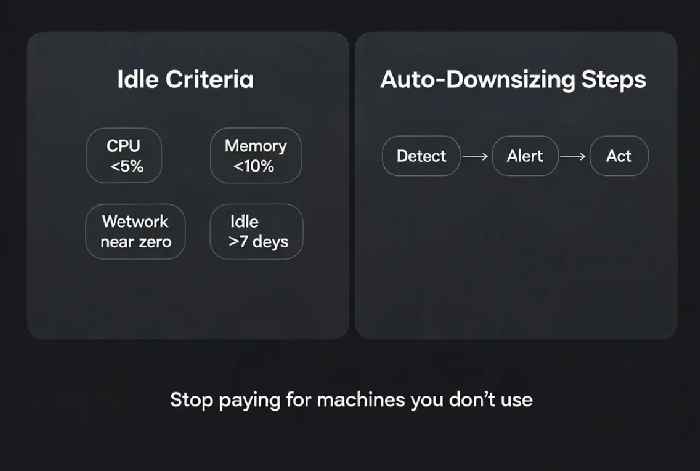
Low‑utilisation instances: CPU <5%, memory <10%, network traffic near zero
Zombie resources: Created and never used. No tags. No known owner.
Off‑hours idle: Only active during working hours. Nights and weekends completely idle.
Over‑provisioned: The workload needs 2 cores and 4GB, but the instance is 8 cores and 32GB.
That client’s instance had been created six months earlier by an intern who ran a test and forgot to shut it down. No one knew. No one dared to touch it. It ran for six months, burning money every day.
02 How to Determine If an Instance Is Idle
Don’t rely on CPU alone. Combine multiple metrics.
Reference criteria:
CPU average utilisation – less than 5% over the last 7 days
Memory average utilisation – less than 10% over the last 7 days (or stable at a very low baseline)
Network traffic – inbound + outbound <1 Mbps (or near zero)
Active connections – near zero
Time‑of‑day pattern – extremely low utilisation during off‑hours (e.g., 2‑6 AM)
If an instance meets these criteria for 7 consecutive days, it’s a strong candidate for downsizing or termination.
That client pulled 30 days of metrics from their cloud monitoring. Dozens of instances had CPU below 5% for weeks. Half were in test environments. The other half were non‑critical production services.
03 Idle Doesn’t Always Mean You Can Delete It
Before downsizing or terminating, ask a few questions.
What does this instance do? If you don’t know, don’t act immediately. Find the owner (check tags, ask the team). Send a notice: “This instance will be stopped in 7 days. Reply if you still need it.”
Who will be affected? A batch job might run once a week. CPU is low most of the time, but the job is critical.
Can we downsize instead of terminate? 8 cores to 2 cores. 32GB to 8GB. Downsize first, observe, then decide.
Can we recover quickly if we shut it down? Do we have a recent snapshot? Can we restore from backup?
That client down‑sized the mystery instance to 2 cores and 4GB. They observed for a week – no impact. Then they stopped it for a week – no complaints. Finally, they terminated it.
04 Auto‑Downsizing in Three Steps
Manual review doesn’t scale. Automate.
Step 1: Detection
Periodically scan all instances. Pull CPU, memory, and network metrics. Tag instances that fall below thresholds as “idle candidates.” Run this scan daily.
Step 2: Alerting
When an instance is marked idle, notify the owner or team: “Instance X has been idle for 7 days. It will be downsized or stopped in 3 days unless you take action.” Use Slack, email, or DingTalk. Give a grace period.
Step 3: Action
Low risk: Auto‑downsize (e.g., 8 cores → 2 cores)
Medium risk: Auto‑stop. Keep the volume. If no one restarts it within a week, auto‑terminate.
High risk: Don’t act automatically. Create a ticket for human review.
That client implemented auto‑downsizing with AWS Systems Manager Automation + Lambda. Every night, the scan identified instances with CPU <5% and network traffic <1 Mbps for 7 days. A notice was sent. After 3 days, if no response, the instance was downsized to the smallest available size. After another 7 days of low utilisation, it was stopped.
05 What Not to Automate
Some resources should never be auto‑downsized. Add them to a whitelist.
Production core services (databases, gateways, message queues)
Services with strict SLAs (latency‑sensitive)
Time‑sensitive windows (don’t downsize during a flash sale)
Specialised instances (GPU, high‑memory instances)
Use a tag like auto-downsize: false to exclude them from automation.
That client whitelisted all critical Kubernetes nodes and RDS instances. Non‑critical services ran the full auto‑downsize pipeline.
06 A Real Story: 25% Cost Reduction
A client had hundreds of instances. Their monthly bill was high. We ran an idle resource scan.
Findings:
20% of instances had CPU <5%. Half of those were production non‑critical services.
10% of instances were severely over‑provisioned (8‑core machines running single‑threaded apps).
5% of instances had no traffic for 30+ days – completely abandoned.
What we did:
Terminated abandoned instances.
Downsized low‑CPU instances to 2 cores / 4GB.
For non‑critical production services, configured auto‑downsizing during off‑hours.
The next month’s bill dropped by 25%. Their ops lead said: “I used to think a few idle instances didn’t matter. But they add up – a lot.”
The Bottom Line
Idle resources are a silent drain on your cloud budget. Instances run, no one uses them, but the bill keeps coming.
That client’s ops lead later said: “Scan first. Find the sleeping instances. Downsize before you terminate – it’s safer. Automate the process, but whitelist your core services.”
How many of your cloud resources are sleeping right now? Go check today. You might be surprised.