Cloud Network Troubleshooting: From Ping Fails to Slow Requests – Find the Culprit Step by Step
Last year, a client called me at midnight, frustrated. “Users can’t reach our service. We’ve checked everything – the server is up, the firewall looks fine. But it just doesn’t work.”
I asked: “Can you ping it?”
“Yes, ping works.”
“Can you telnet to the port?”
“Yes, that works too.”
“Then what’s the problem?”
Silence.
We captured packets. The TCP handshake completed, but then the server sent a RST packet and closed the connection. The cause? The application code had an IP whitelist. The client’s IP wasn’t on it. Ping and telnet didn’t trigger that code. Only the actual business request did.
This is the most frustrating kind of network failure: every layer says it’s working, but the service is still down.
Today, let’s talk about cloud network troubleshooting. Not the “just ping it” beginner’s guide, but a systematic approach: from ping failures to slow requests, how to find the problem step by step.
01 The First Three Commands
When a network problem occurs, start with these three commands. They filter out most common issues.
ping – Tests ICMP reachability and latency.
Ping works? The IP layer is reachable. The network path is likely fine. Ping fails? The security group might block ICMP, the route might be broken, or the target machine might not respond to ICMP.
Important: Ping working does not mean the service port is reachable. ICMP and TCP/UDP can take different paths.
telnet / nc – Tests TCP port reachability.
telnet ip port succeeds? The TCP handshake completed. Firewalls and security groups are not blocking the port. Fails? The port might be closed, the service might not be running, or a security group is blocking it.
traceroute – Shows the route and per‑hop latency.
traceroute ip reveals each hop. If latency suddenly spikes or packets drop at a certain hop, the problem is likely at that hop or further along the path.
That client’s case was unusual: ping worked, telnet worked, but the business request failed. Ping proved IP reachability. Telnet proved TCP reachability. But the RST came from the application layer – invisible to basic connectivity tests.
02 Packet Capture: The Raw Truth
Commands and logs give you processed information. Packet capture gives you the raw evidence.
tcpdump – Capture on the server
bash
sudo tcpdump -i eth0 port 8080 -w capture.pcap
Analyse the capture with Wireshark. You can see the three‑way handshake, retransmissions, packet loss, and RST packets.
What packet captures often reveal:
Excessive retransmissions → network loss
RST packets → server actively closing the connection (application rejection, timeout, or firewall)
Zero window → receiver buffer full, sender paused
That client’s capture showed a clean TCP handshake, followed immediately by a RST from the server. The application code had a whitelist. The client’s IP was not allowed. Ping and telnet never reached that code path. Only the real business request did.
03 Layered Troubleshooting: Top to Bottom, Outside to Inside
Network problems must be approached layer by layer.
| Layer | Tools | Common issues |
|---|---|---|
| Client | Switch network, change device | Local DNS, proxy, local firewall |
| DNS | nslookup, dig | Resolution fails, wrong IP |
| Network path | ping, traceroute, mtr | Loss, high latency, routing detour |
| Security group / firewall | Check inbound/outbound rules | Wrong port, wrong IP range |
| Load balancer | Health checks, backend logs | Unhealthy backend, listener misconfigured |
| Server | netstat, ss, application logs | Service not started, port not listening, code bug |
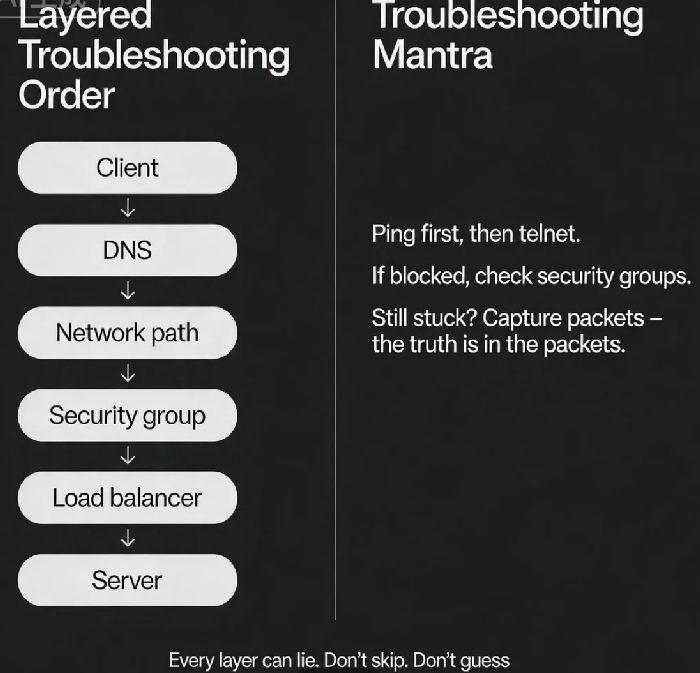
Troubleshooting order: Client → DNS → network path → firewall → load balancer → server. Do not skip layers. Do not guess.
04 Cloud‑Native Troubleshooting Tools
Cloud providers offer network troubleshooting tools that are often more intuitive than command‑line tools.
VPC Flow Logs – Records network traffic within a VPC. You can see who is talking to whom, on which ports, and whether the traffic was allowed or rejected. Especially useful for identifying security group blocking.
Reachability Analyzer – Checks whether a network path from a source to a destination is reachable. Enter source IP, destination IP, and port. The tool tells you which policies (security groups, NACLs, route tables) would block the traffic.
Traffic Mirroring – Copies network traffic to an analysis tool. Good for deep inspection without affecting production.
That client later used VPC Flow Logs to discover that their security group had two rules: one allowing ICMP (for ping) and one allowing TCP on ports 80 and 443. But the business port was 8080. Ping used ICMP, so it worked. Telnet used 8080, and the Flow Logs showed it was rejected by the security group. They had missed that port when checking the rules.
05 A Real Story: Where Did the Latency Come From?
An office‑based client complained that accessing their cloud service was very slow – consistently over 200ms. Server‑side monitoring showed request processing took only 20ms. Where did the other 180ms go?
Troubleshooting steps:
Ping to the server: 5ms latency. The network path was clean.
curl to the API: total 220ms. Server logs said 20ms.
traceroute: the traffic from the office to the cloud provider was being routed through a distant region before coming back. The cloud provider’s point of presence had been set to the wrong region.
They reconfigured the network to use the nearest point of presence. Latency dropped to 25ms.
When investigating latency, don’t only look at server‑side metrics. Look at the full path – from the client to the server. Every hop can add time.
The Bottom Line
Network troubleshooting is detective work. Every layer can lie. Ping can be fine while the port is blocked. The port can be reachable while the application refuses the request. The server can be fast while the user waits.
That client’s ops lead later came up with a short mantra: “Ping first, then telnet. If something is blocked, check security groups. If it still doesn’t work, capture packets – the truth is in the packets. Check layer by layer. Don’t skip. Don’t guess.”
The next time a network problem appears, start with ping. Walk the layers. Let the evidence – not your assumptions – lead you to the culprit.