System Suddenly Slow? Tracing from Entry to Code Line – A Root Cause Hunt
Yesterday, a client messaged me: “Our order API suddenly slowed down. P99 went from 100ms to 3 seconds. Can you see what’s wrong?”
I asked: “Do you have a Trace ID?”
“Yes, I’ll send it.”
I opened the trace. The order service called the inventory service – 2.8 seconds. Inside the inventory service, a Redis command – 2.7 seconds. The command was HGETALL on a hash with 10,000 fields.
Root cause found. Not slow code – a large Redis key. Splitting the key reduced the query to 50ms.
This is the standard path for hunting a slowdown: from the user’s request down to the line of code.
Today, let’s talk about how to systematically find why your system is slow, from entry to code line.
01 First, Scope the Problem
Don’t start by digging into code. First, understand the scope.
Who feels the slowness?
All users → system‑wide issue (database, network, resource exhaustion)
Specific region → CDN, dedicated circuit, ISP issue
Single user → large data set for that user, special account
Which endpoint is slow?
All endpoints → infrastructure (CPU, memory, I/O, network)
Specific endpoint → that endpoint’s dependencies or code
When did it start?
Right after a deployment → roll back or examine changes
During peak traffic → resource exhaustion, pool saturation, queue buildup
During off‑hours – batch jobs, backups, scheduled tasks interfering
That client’s slowness was only on the order endpoint. Infrastructure was fine. Focus on the order endpoint and its dependencies.
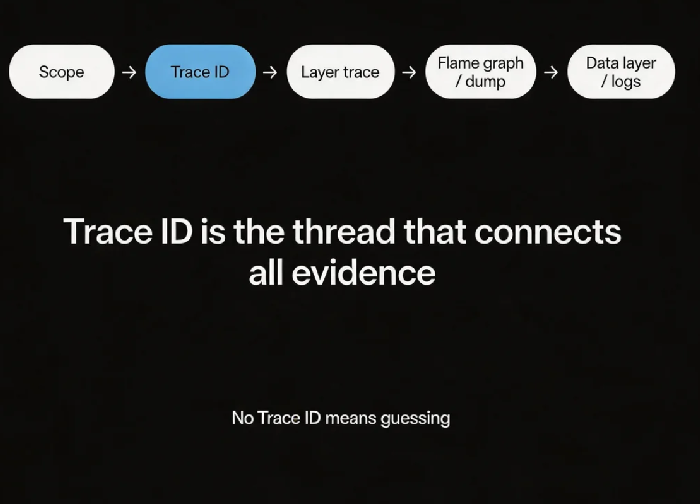
02 Trace ID: The Thread That Connects the Evidence
Without a Trace ID, logs are scattered, traces are disconnected, and debugging is guesswork.
A Trace ID travels through the entire call chain: gateway → order service → inventory service → Redis → database → response. Every hop logs the same Trace ID.
With a Trace ID, you can:
See the latency distribution in APM (which hop is slowest)
Search all logs across services for that Trace ID
Correlate with slow database queries
That client used the Trace ID to find that the inventory service was the bottleneck, then drilled into its logs to see the Redis command.
03 Layered Investigation: Top to Bottom, Outside to Inside
With the Trace ID, peel back the layers.
Layer 1: Gateway / load balancer
Did the request arrive? What was the total latency? Was the gateway itself slow?
Layer 2: Application services
Look at the trace. Which service took the most time? Order service total = 3 seconds. Call to inventory = 2.8 seconds. Inventory service total = 2.8 seconds. Redis command = 2.7 seconds.
Layer 3: Data layer
What specific operation was slow? HGETALL on a large hash? A slow SQL query missing an index? A connection pool exhausted and waiting?
Layer 4: Infrastructure
If the data layer looks normal, check CPU, memory, disk I/O, network. Was there resource contention? Did disk I/O saturate?
That client’s path: order API slow → trace shows inventory service → inventory service shows Redis → Redis shows HGETALL on a large key. Four layers, pinpointed.
04 Code‑Level Tools: Flame Graphs and Thread Dumps
Sometimes a trace only tells you which service is slow, not why. That’s when you need code‑level tools.
Flame graph: Shows where CPU time is spent. The widest bar is the hottest code path.
async‑profiler for Java
Pyroscope for continuous profiling
Thread dumps: Show what each thread is waiting for. Capture multiple thread dumps and look for threads that are consistently RUNNABLE or BLOCKED.
jstackfor JavaArthas for online diagnostics
Without a flame graph, that client would have seen “Redis operation slow” but not known why. The flame graph showed HGETALL consuming massive CPU because it scanned 10,000 fields. Without it, they might have blamed the network.
05 Data Layer Investigation: Slow Queries and Connection Pools
The data layer is a common source of slowness.
Database slow queries:
Enable slow query log with a reasonable threshold (e.g., 1 second)
EXPLAINto see execution plans. Missing index? Full table scan?SHOW PROCESSLISTto see locks or long‑running transactions
Redis slow queries:
Enable the slow log. Record commands that exceed the threshold.
Look for large‑key operations (
KEYS,HGETALL,SMEMBERS).Look for hot keys causing a single node to saturate.
Connection pools:
Are active connections near the maximum?
Is the time to acquire a connection abnormally high?
That client’s Redis slow log captured the HGETALL command at 2.7 seconds. It pointed directly to the large‑key problem.
06 A Real Story: Too Much Logging Can Also Be Slow
A client’s API suddenly became slow. The trace showed business logic took only 10ms, but total latency was 500ms. Where did the 490ms go?
Investigation:
Flame graph: the widest bar was logging
Log level in production: DEBUG. Thousands of log lines per second.
Disk I/O: writing logs saturated disk I/O.
Changing the log level to INFO dropped response time from 500ms to 50ms.
Sometimes the slow part isn’t your business code – it’s the framework, the logging, the serialisation.
The Bottom Line
A slow system is frustrating, but not knowing how to find the cause is worse.
That client’s ops lead later made a short mantra: “Scope first: global or specific? Trace ID ties it all together. Look at the trace: which layer is the thickest? Flame graph for hot paths, thread dumps for waits. Slow query logs – don’t turn them off.”
Next time a user says “it’s spinning,” will you know how to find the truth?